GLP-1 tracker
GLP-1 Calendar: Shots, Check-Ins, and Photos
Pokii's Calendar tab brings every entry in your GLP-1 journey together in one place. Rather than hunting across separate screens for shots, check-ins, and photos, the calendar gives you a single connected view of your history that you can browse as a month grid or a list, and it draws from the same shot, check-in, weight, body measurement, and food scan data as the rest of Pokii. Tap into any entry and you can see, and edit, exactly what you logged, without leaving the calendar.
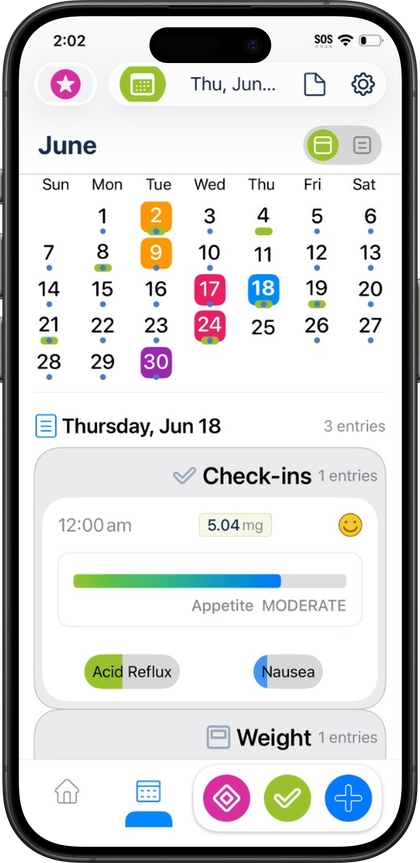
Seeing your month at a glance
The month calendar view lays your history out day by day, showing shots, check-ins, and photos alongside weight, body measurements, and food scans on the dates they happened. Because Pokii pulls this straight from your logged entries, a glance at a given week shows whether a shot landed on schedule, whether a check-in was recorded that day, and whether a progress photo or food scan was captured, all without opening each section separately.
That day-by-day layout is useful for spotting gaps as much as confirming what's there. If a week looks emptier than expected, that's a visual cue to check whether a check-in or shot was missed, rather than something you'd only notice by scrolling through a long list. The production calendar's date picker is oriented toward the past, which fits how the month grid is used in practice: it's built for reviewing and correcting history rather than planning future dates, since scheduling and reminders for upcoming shots live in Pokii's shot schedules and dashboard banners. For logging something new in the moment, Pokii's floating log actions still give you a quick way to record a shot, check-in, weight, body measurement, progress photo, or food scan without needing to find today's square on the calendar first.
Switching to list view for a scannable history
The Calendar tab also has a list mode, which trades the grid layout for a straightforward, scrollable sequence of entries. It's the same underlying history as the month view, just presented as a line you can move down through, which is handy when you're looking for a specific entry rather than surveying a whole month at once, or when you want to review a longer stretch of days without paging between months.
List view covers the same range of entry types as the grid: shots, check-ins, photos, weight, body measurements, and food scans. Because Pokii keeps full edit history for shots and ties side effect severity and notes to dose timing in your history and PDF reports, list view is also a practical way to scan a run of check-ins next to the shots around them, since both sit in the same chronological list rather than in separate tabs. For anyone reviewing their dosage history or looking back at how appetite, mood, or side effects tracked over a stretch of weeks, the list format keeps that comparison to a straightforward scroll instead of a month-by-month hunt.
Tapping any entry to edit it
Every entry on the calendar, in either view, is tap-to-edit. Tapping a shot opens it with its date, time, medicine, dose, and notes ready to adjust, which matters because Pokii keeps a full edit history rather than treating a logged shot as fixed once saved. Tapping a check-in opens the same side effects, appetite, mood, and notes fields used when it was first logged, so correcting a mistyped severity or adding a note after the fact happens right from the calendar entry itself.
The same applies to weight, body measurements, progress photos, and food scans logged on a given day: tapping the entry takes you to it directly rather than routing you back through My Journey or the nutrition dashboard to find it. Because Pokii's data syncs across devices through your personal iCloud account, an edit made to a calendar entry on your iPhone is the same record your iPad sees, so there's no separate cleanup step to keep the two in sync. As with the rest of Pokii, the calendar is a tool for tracking and reviewing your own logged history, not a source of medical guidance, so what you see reflects what you've recorded rather than a clinical assessment.
Always follow your prescriber’s instructions for GLP-1 medications. Pokii helps you log and visualize your journey; it does not replace professional care.