Product
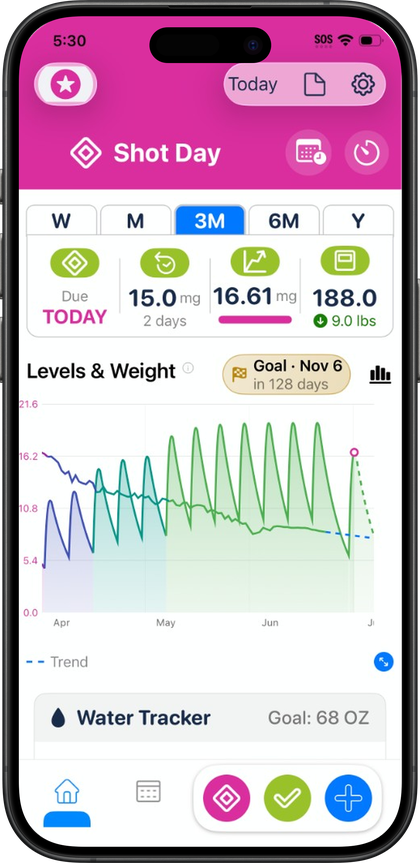
Import from Shotsy to Pokii
Yes — Pokii imports Shotsy JSON (`.json` / `.shotsyjson`) into dose and shot history, with duplicate review after import. Exercise and nutrition from Shotsy do not transfer. Generic CSV import is also supported; Shotsy CSV is not verified compatible.
Quick answer
- Best path: Export from Shotsy → Import Shotsy JSON in Pokii (fields documented in-app).
- Carries over: Dose/shot history Pokii’s importer recognizes.
- Does not carry over: Shotsy exercise or nutrition logs.
- CSV: Header-based generic importer—not guaranteed for Shotsy’s CSV export.
- After import: Duplicate detection and cleanup review.
Exporting from Shotsy and importing into Pokii
Pokii has a dedicated Import Shotsy JSON feature built specifically to read a Shotsy export file. It accepts files with a.json or.shotsyjson extension and converts the contents into Pokii's own data model. Once you have your Shotsy export file on your iPhone or iPad, open Pokii's import screen and select it there; the in-app screen documents exactly which fields it recognizes so you can see what will and won't be pulled in before you commit to the import.
This import path is free to use — it isn't gated behind Pokii. It's also one-directional: Pokii doesn't currently offer a CSV export of its own, so there's no supported way to move data back out of Pokii into Shotsy or another app. Pokii's own backup and restore format is a Pokii JSON file, shared manually or via optional daily auto-backup, and separately, one-tap restore from iCloud is available in the same import settings area if you're moving between your own devices rather than migrating from another app.
What actually carries over — and what doesn't
Be precise about scope here, because it matters for anyone relying on Shotsy as their full health log. Pokii's Shotsy JSON import is built to bring across your dose and shot history: the injections you logged in Shotsy, translated into Pokii's shot records with date, time, medicine, and dose intact where Shotsy's export includes them.
If you want nutrition and water data going forward in Pokii, use built-in food logging: scan nutrition labels (recommended for accuracy) or capture meals in-app, edit AI macro estimates before save, and see entries on Today's log beside shots, with writes to Apple Health. Pokii also reads nutrition and water totals from Health when other apps write there. Shotsy's manual nutrition rows do not import; plan to log meals fresh in Pokii rather than expecting a diary transfer.
Because the supported and unsupported fields are documented directly on Pokii's in-app import screen, that's the most accurate place to check exactly what your specific Shotsy export will and won't map to — file structures can vary, and the in-app screen reflects what the current importer actually reads rather than a general description of the feature.
CSV import as an alternative
If your data isn't coming from a Shotsy JSON export — say you have a spreadsheet of dose history from another source, or you exported something in a different tracker's CSV format — Pokii also has a separate Import CSV feature. It's a generic, header-based importer: it reads column headers in your CSV file and converts the recognized rows into Pokii's backup format for import.
Because it's header-based, the file needs headers Pokii's importer recognizes for it to map your data correctly. This CSV path is generic by design, meaning it isn't purpose-built or verified against any single competitor's specific CSV export layout — it's a general tool for header-based CSV data rather than a guaranteed one-tap migration from a named app. If you're not sure whether a CSV export from your previous app will map cleanly, it's worth reviewing the column headers against what Pokii's import screen expects before you import a large file, and checking the results afterward using the same duplicate review flow described below.
Duplicate detection and cleanup after import
However you get data into Pokii — Shotsy JSON or CSV — the app runs duplicate shot detection automatically after the import completes. This exists specifically to catch a common migration problem: re-importing a file after a partial or repeated attempt, or overlap between what you already logged manually in Pokii and what an import file also contains, which can otherwise leave you with the same shot counted twice in your history and charts.
After an import runs, Pokii flags likely duplicate entries and surfaces them in a dedicated review flow (DuplicateReviewView in the app) rather than silently merging or deleting anything on its own. That review screen is where you look at the flagged entries side by side and decide what to keep, so you're not guessing which of two similar-looking shots is the real one. The cleanup step is built to be safe: you can review before anything is removed, so an over-aggressive match doesn't cost you real data.
This same duplicate review flow is what you want if you're not migrating from another app at all but simply suspect your existing Pokii shot history has doubled-up entries — from a repeated CSV import, a restore that ran twice, or manual double-entry. Since detection runs after any import, re-running an import (for example, importing the same Shotsy file again if you're not sure the first one worked) is a safe way to trigger a fresh duplicate check rather than something to avoid. If you've just migrated from Shotsy, it's worth opening the duplicate review screen once after your import finishes, confirming nothing was double-counted, and then relying on your dashboard chart and shot history knowing the numbers reflect what you actually injected.
Always follow your prescriber’s instructions for GLP-1 medications. Pokii helps you log and visualize your journey; it does not replace professional care.