Go to your Dashboard.
Tap on the Last Shot card (second from the left)
This will open the Shot Scheduler view.
The Shot Scheduler helps you plan and adjust your future injection day if you can't take your injection on the exact interval day for any reason.
Go to your Dashboard.
Tap on the Last Shot card (second from the left)
This will open the Shot Scheduler view.
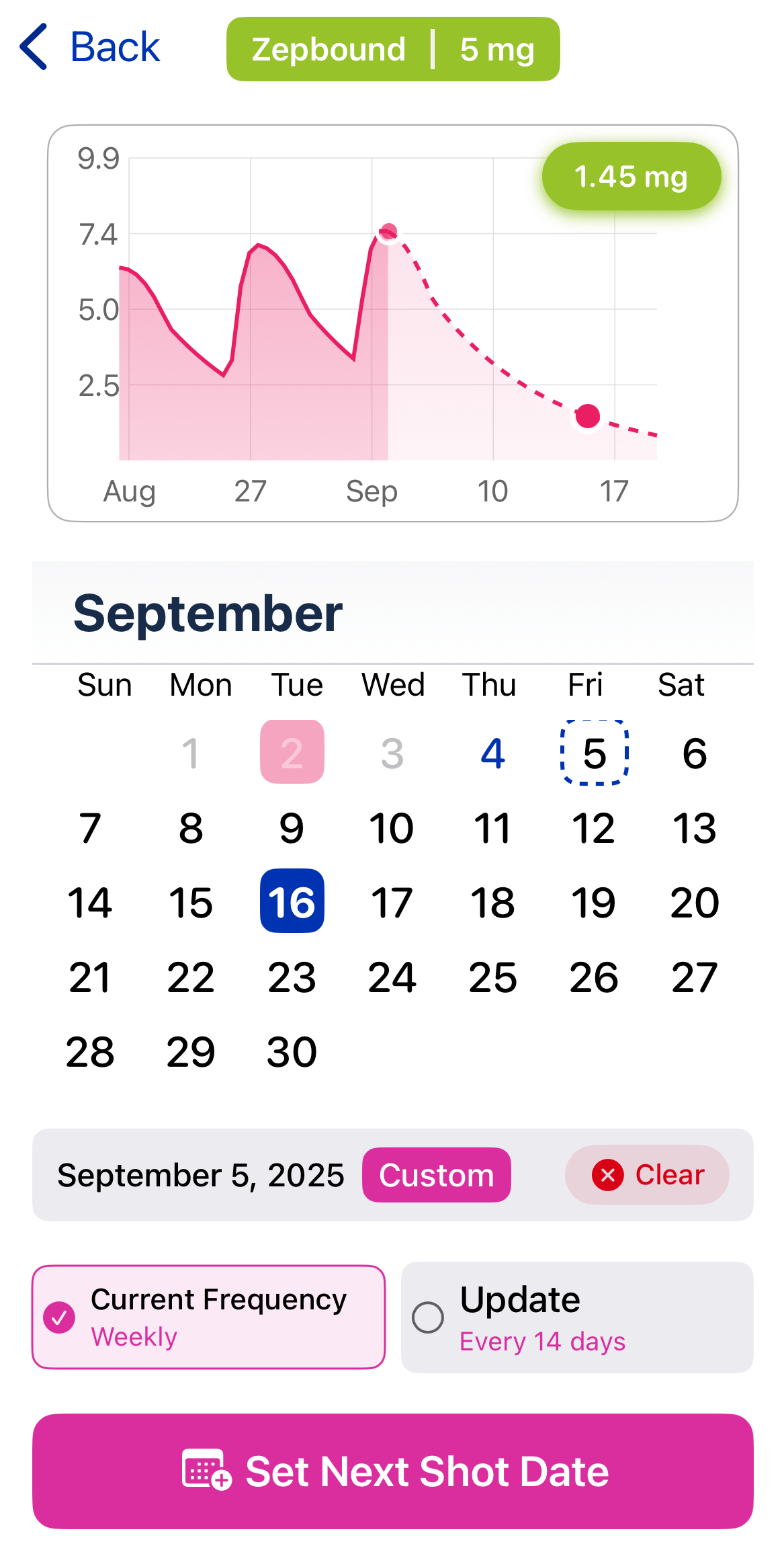
You’ll see your projected medication curve based on your most recent shot and frequency.
Swipe left or right across the chart:
The date updates automatically as you swipe.
The chart shows what your estimated medication level will look like on that day.
Once you’ve found the day you want, just tap Set Next Shot Date.
Yes — if you change the date, the scheduler will recalculate your frequency based on the new spacing.
You can choose to keep your current frequency or
Let Pokii update it to match the new interval.
No worries — you can always re-open the scheduler and pick a new date. Your future shots are flexible until you take the actual injection. If you would like to remove the custom date, just click the red 'Clear' button next to the "Custom" label.
If you’ve explicitly scheduled a shot for a specific date (instead of using your normal interval), Pokii will show a “Custom” label by Next Shot in Settings under SHOT DATA.
This is a reminder that your next shot isn’t following your usual schedule.
After you take that shot, Pokii will return to your normal interval unless you schedule another custom date.
You can add simulated shots to preview how a different timing or dose would affect your estimated medication level. Tap the green dosage in the top right corner of the chart to insert a simulated shot. If you decide you don’t want it, just tap the “(–) Delete” button at the top to remove it.
To update your default medication or dosage in the scheduler, tap the green bar at the top of the screen. This will open your Settings. From there, tap on your current medication or dosage to change it. The scheduler will then use your new default going forward.